
01
Curves under your control.
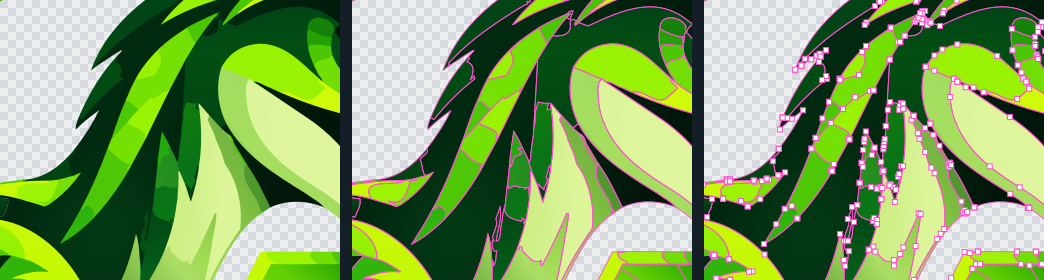
Move nodes, bend and smooth boundaries. Editing a shared edge changes both neighbouring shapes at once.
✳ VECTORISATION + EDITING · WINDOWS
Keep the character of your artwork. Turn pixels into shapes, refine curves and gradients, then keep working in your favourite design app.
Processed locally on your computer.
 COLOUR. SHAPE. CONTROL.
01 / SEE THE RESULT
The same artwork before and after vectorisation. Move the slider and compare the shapes.
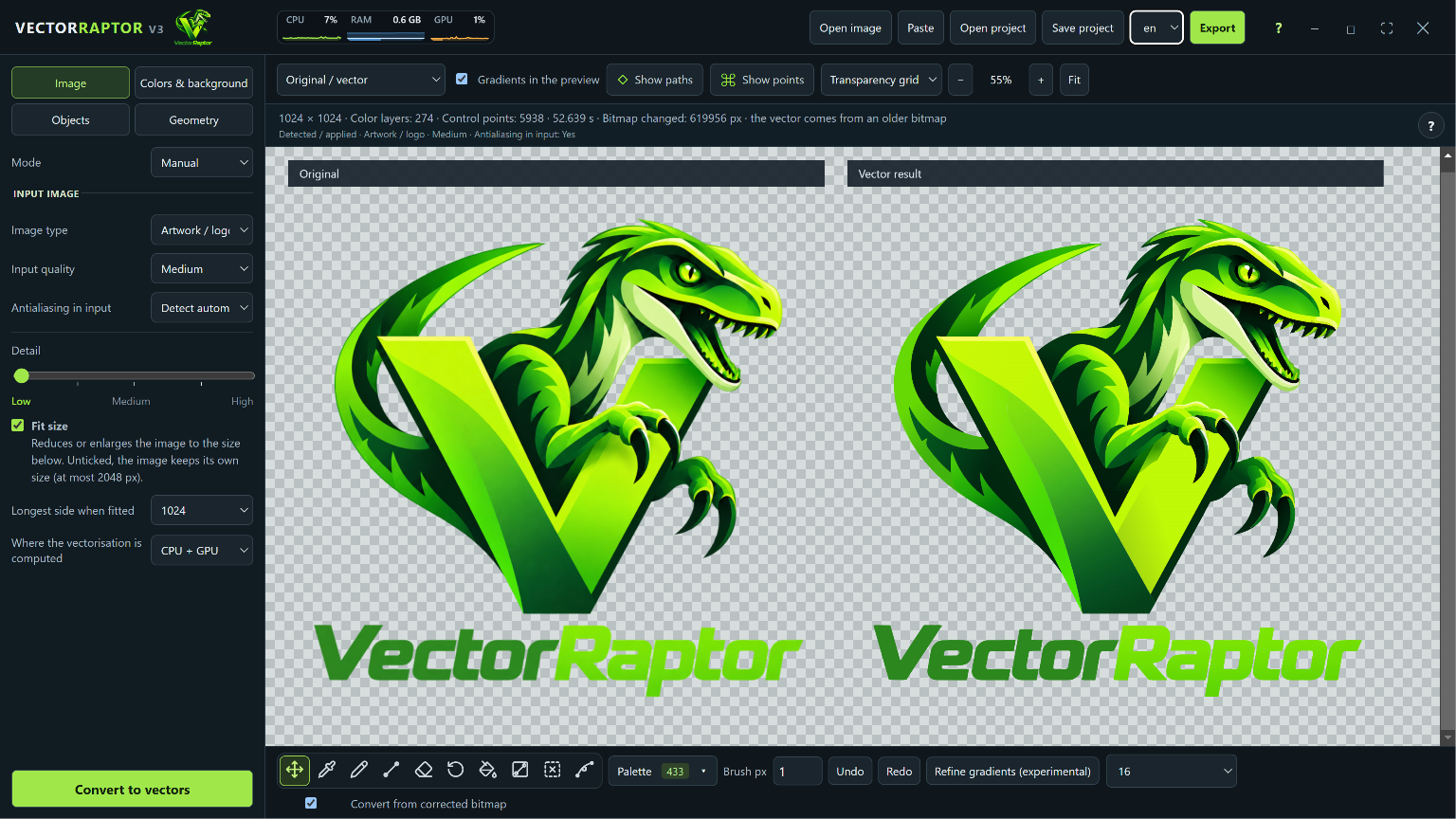
YOUR WORKSPACE
Settings, comparison and editing tools in one place.
02 / YOU STAY IN CONTROL
Refine your result directly on the vector. Control what goes into the exported file.
Move nodes, bend and smooth boundaries. Editing a shared edge changes both neighbouring shapes at once.
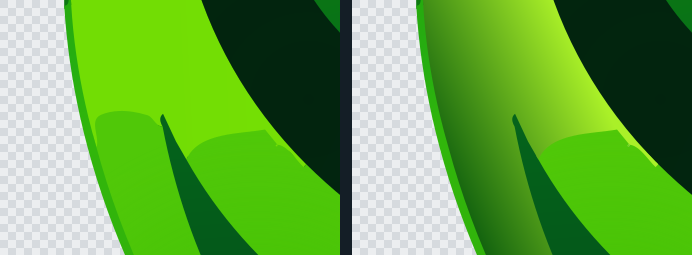
Turn colour bands into objects with gradients. Create your own transitions using two or three colours.
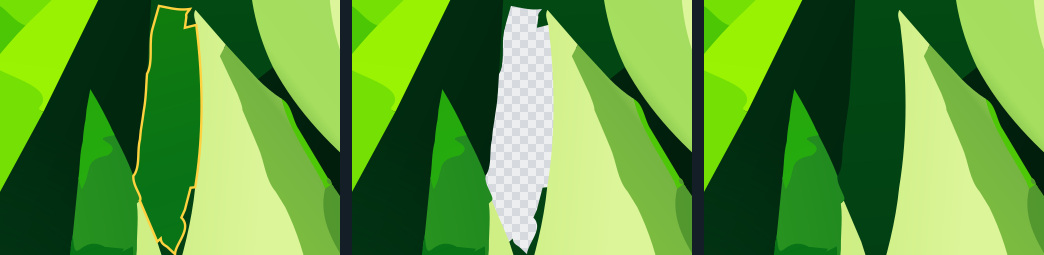
Join shapes, remove small fragments and clear backgrounds to transparency. Fill enclosed gaps with a neighbouring colour.
03 / FROM FILE TO FINISHED ARTWORK
Open a PNG, JPG or WebP, paste an image or drag it into the app.
Start with automatic settings or choose colours, detail and background handling.
Edit curves, paint, change fills and join shapes.
Save in your chosen format with all edits, or keep a .vrp project.
04 / READY FOR THE NEXT STEP
Save the vector you see in the app, including your edits. Choose the format that fits the next stage of your work.
Editable paths for design and the web.
Native shape layers for Adobe Photoshop.
Vector formats for further editing. AI is an Illustrator-compatible PDF.
An image at your chosen size, or an encrypted project you can return to.
USE CASES
Turn a PNG or JPG logo into a crisp vector and save it as SVG, AI, EPS or PDF.
Convert images to SVG with real, editable paths — not a picture embedded in a file.
Smooth colour transitions and soft edges stay smooth, without steps or banding.
Automatic tracing of shapes with a low node count that is easy to keep editing.
Vectors scale without quality loss: business cards, banners, posters, T-shirts, stickers.
Clean outlines in SVG, PDF and EPS for vinyl cutting, engraving and CNC.
Illustrator-compatible AI, EPS, PDF and SVG open in your design app.
Export to Photoshop with native, editable shape layers.
Remove the background before vectorizing and keep transparency in SVG and PNG.
Automatic colour count or your own palette; recolour shapes directly on the vector.
Move, smooth and split paths, join and clean up shapes right in the app.
Local processing on multiple cores and an NVIDIA GPU — your images never leave your computer.
Open PNG, JPG, WEBP, BMP or TIFF (or paste an image from the clipboard) and save an editable vector as SVG, PDF, AI, EPS or PSD with shape layers.
05 / TRY IT WITH YOUR OWN ARTWORK
Try the tools in the demo. Saving projects and exporting need a Pro licence.
DEMO VERSION
The demo is for trying the app: you see the result in the program, but cannot save or export it.
VECTORRAPTOR PRO
from $10 a month (1 computer), $15 for 2 computers
Buy a licenceUp to 3 days offline after a licence check, within an active subscription.
The app will appear in the Microsoft Store once certification is complete. You can buy the Pro licence now.
09 / QUESTIONS
Open the image (PNG, JPG, WEBP, BMP or TIFF) in VectorRaptor, click “Convert to vectors”, refine the result with the vector tools and export it to SVG. PDF, AI, EPS and PSD work the same way.
Yes. VectorRaptor keeps flat colours, gradients and soft edges while limiting the number of nodes, so the paths stay easy to edit.
Images are processed only on your computer and never uploaded. The internet is needed only to check the Pro licence — at least once every 3 days.
The demo lets you try every tool, but without saving projects or exporting. A Pro licence costs $10 / €10 a month for 1 computer or $15 / €15 for 2 computers; cancel any time, it works until the end of the paid period.
Windows 10 or 11 (64-bit). An NVIDIA graphics card is not required but speeds up conversion; the app also uses multiple CPU cores.
Yes. Every vector file contains real, editable paths; PSD has native shape layers and AI is an Illustrator-compatible PDF.
09 / QUESTIONS
Vectorisation runs locally on your computer. An internet connection is needed to manage your Pro licence.
No. The app can calculate the result on your CPU. A supported NVIDIA card accelerates selected stages; speed depends on your artwork, settings and hardware.
Yes — nodes, curves, colours, gradients and shapes. The exception is the “Rigid silhouette outline” option, which disables path editing.
The result depends on image quality and settings. Higher detail preserves more colour differences, but creates more shapes and takes longer. Compare your result in the demo.